

User guide
Learn the app by following screenshots
Pick a goal, follow the steps, and match what you see on-screen. Each section is designed to be skimmed in under a minute.
How to use this guide
Use the Topic Bar below to jump to a workflow. Each step has a matching screenshot frame to help you follow along.
Getting started
Your first 10 minutes
Follow this sequence once—after that, you’ll know where everything lives as you pay attention to the left navigation bar.
Orientation
Know the layout before you enter numbers
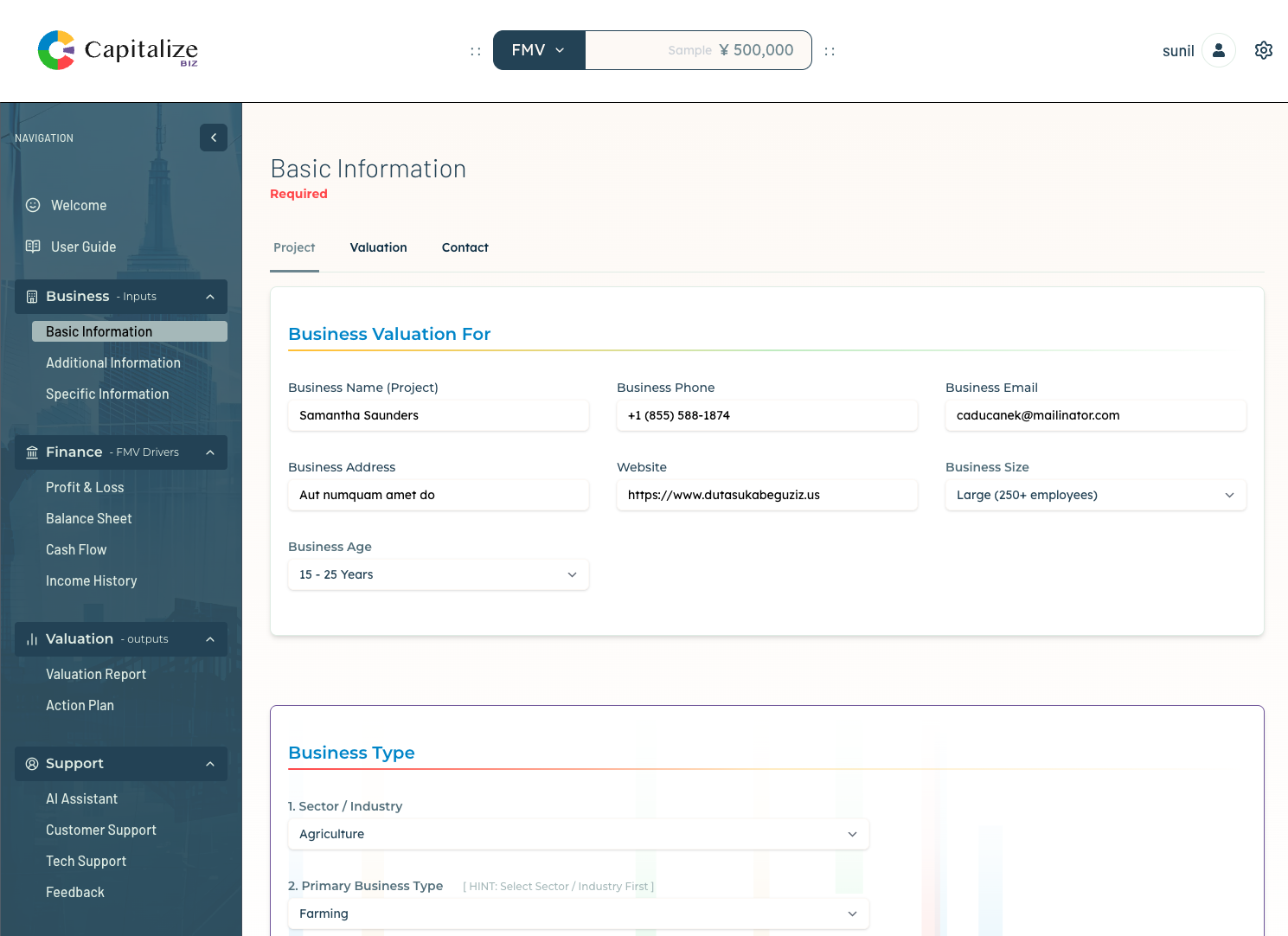
Capitalize Biz uses a consistent pattern: navigation left, actions up top, work in the middle.
A) Top bar
Access dashboard context, AI, and system settings.
B) Left menu
Move between Business Inputs, FMV Drivers, and Reports.
C) Main canvas
Forms, charts, and reports live here—scrollable and focused.
Quick start itinerary
- Open Business Basics to seed company info & ownership.
- Complete Profit & Loss and Cash Flow statements.
- Share Valuation Reports directly as a link to it, or download PDF and share.
Screenshot reference
Core workflow
Enter financials
Goal: get clean historicals in so the valuation engine has a stable base for deriving Fair Market Value (FMV).
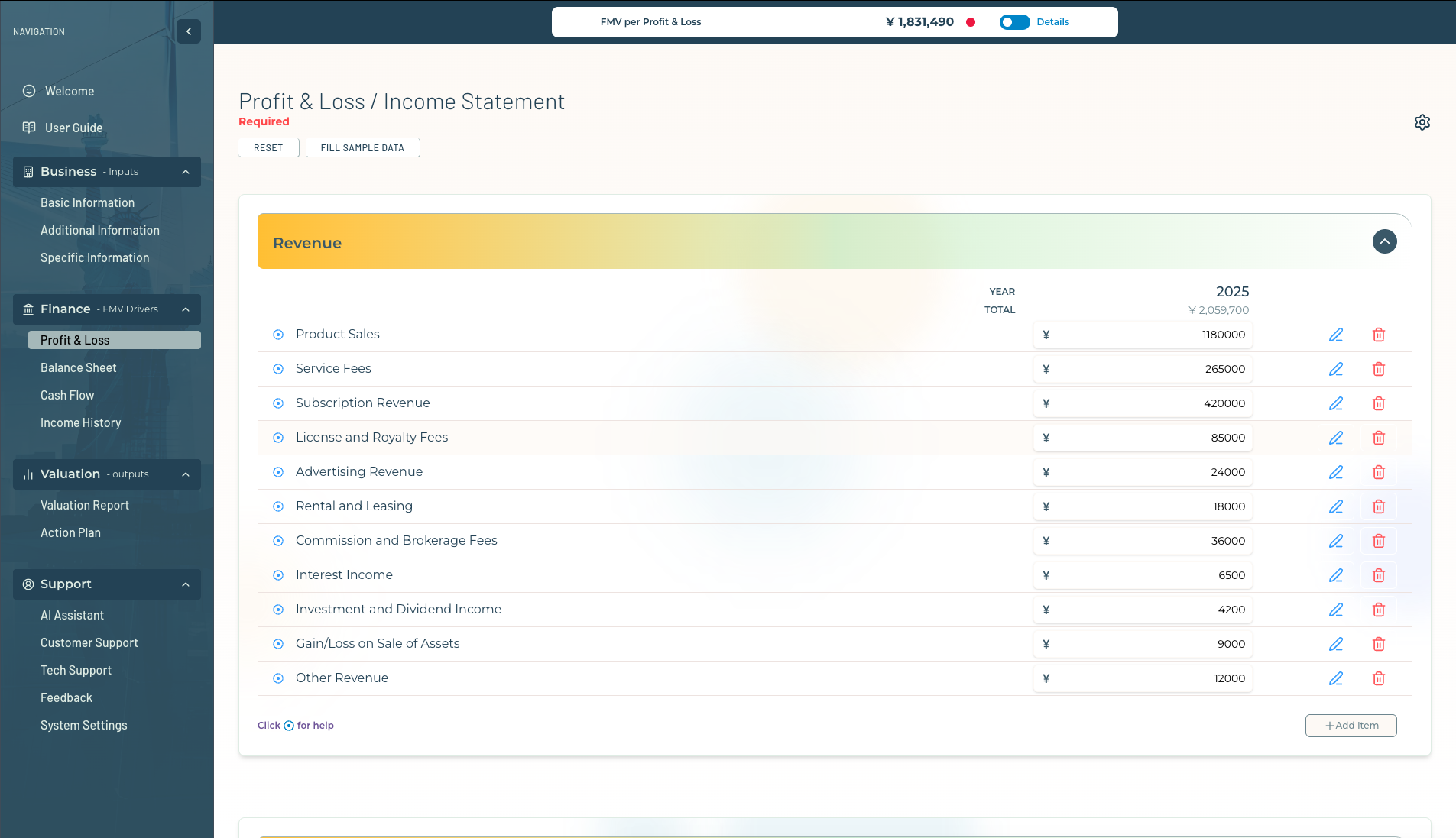
Step 1: Open Profit & Loss
Navigate to Financials and select the Profit & Loss page.
Open Profit & LossStep 2: Enter or import rows
Add items for Revenue, COGS, and OpEx. Keep naming consistent across years.
Common checks
- Totals reconcile year-over-year.
- Signs are consistent (no accidental negatives).
- Periods match your fiscal year.
Step 3: Save & move to Cash Flow
Once P&L is stable, complete Cash Flow to improve confidence.
Core workflow
Run valuations (FMV drivers)
Goal: pressure-test assumptions and see enterprise value update instantly.
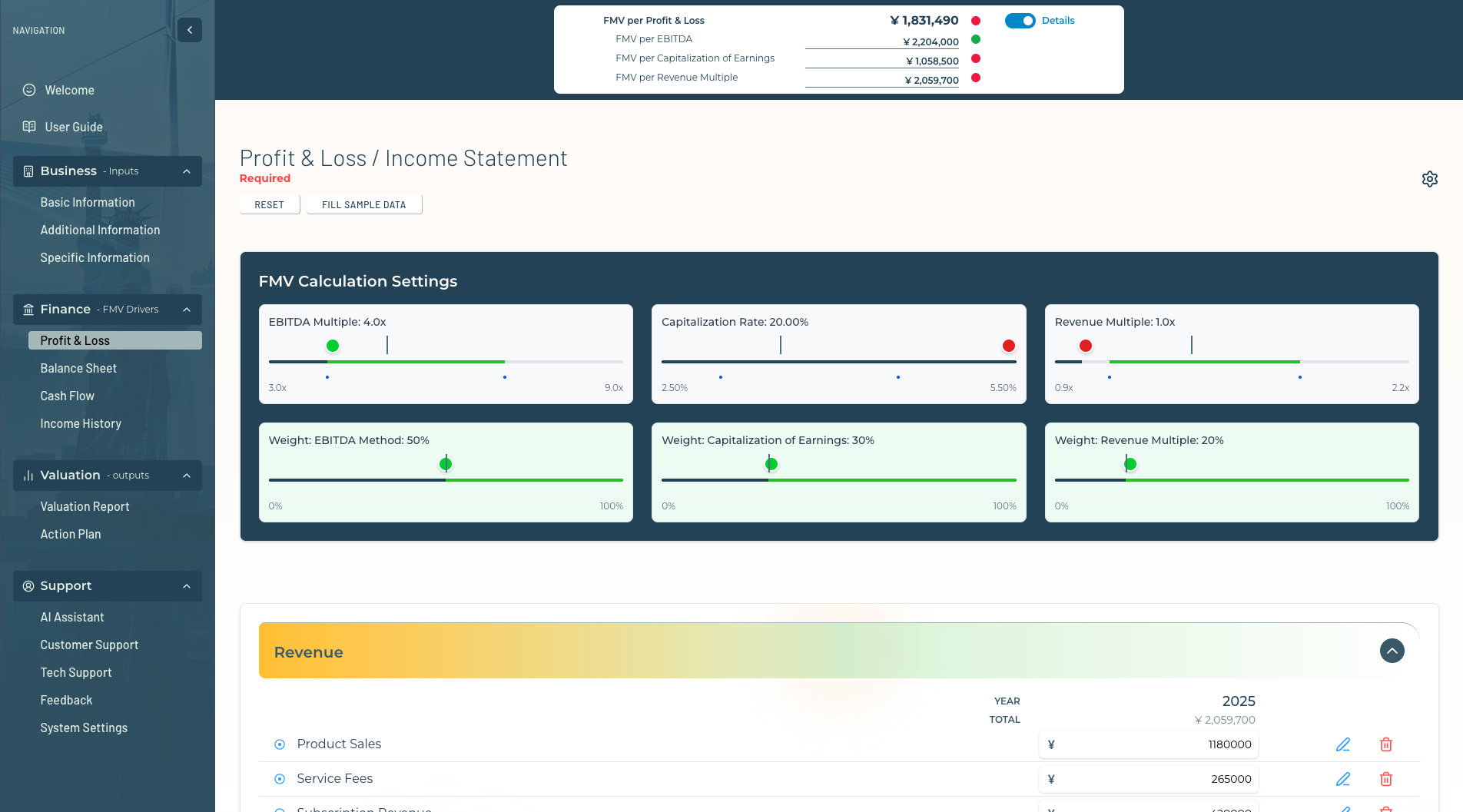
Step 1: Open FMV drivers
Use the left menu to access valuation inputs and sliders.
Step 2: Adjust one lever at a time
Change a single slider, then verify the result in the dashboard and report.
Best practice
If the valuation jumps, confirm the financials and any growth assumptions first.
Step 3: Save a snapshot
Store a baseline valuation so you can compare improvements over time.
Core workflow
Share valuation reports
Goal: send an investor-ready narrative and outputs in a repeatable way.
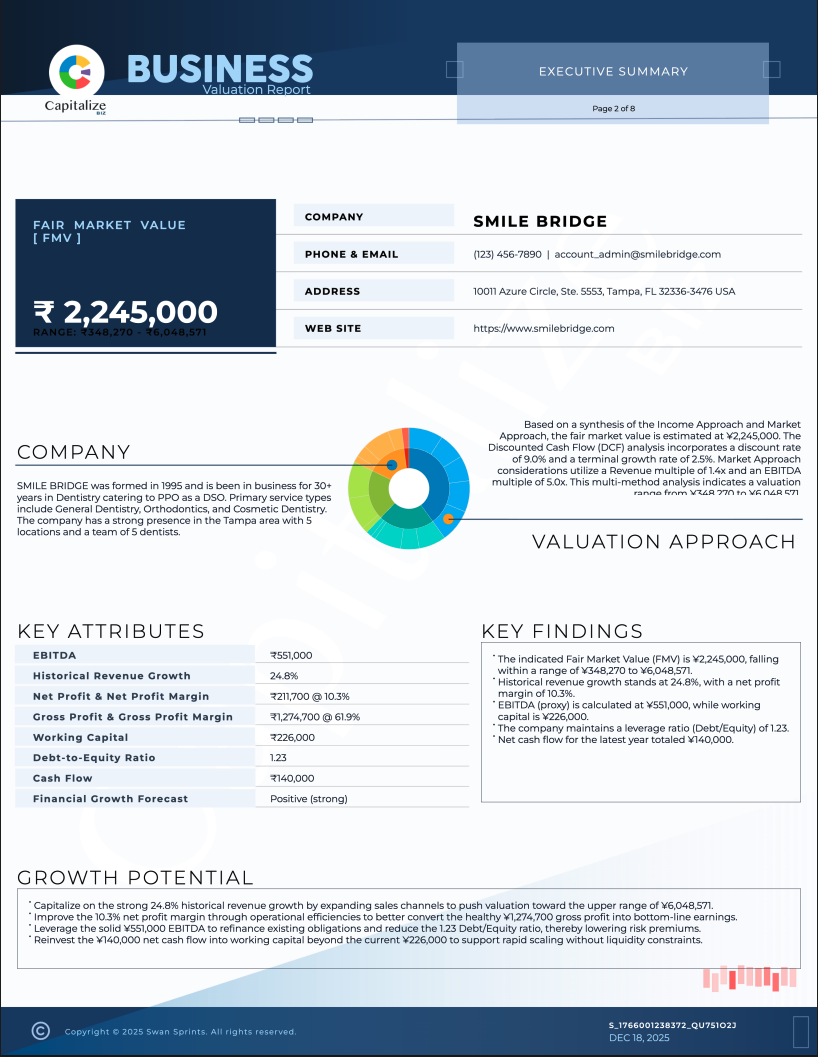
Step 1: Open the Valuation Report
Review the cover and key tables to confirm the story matches the numbers.
Open reportStep 2: Export or share a link
Use exports for diligence packs, or share a link for quick review.
Step 3: Keep versions
Save and label versions so you can track improvements after operational changes.
Core workflow
Use the AI assistant (while you work)
Goal: get explanations, summaries, and next-step suggestions without leaving the page.
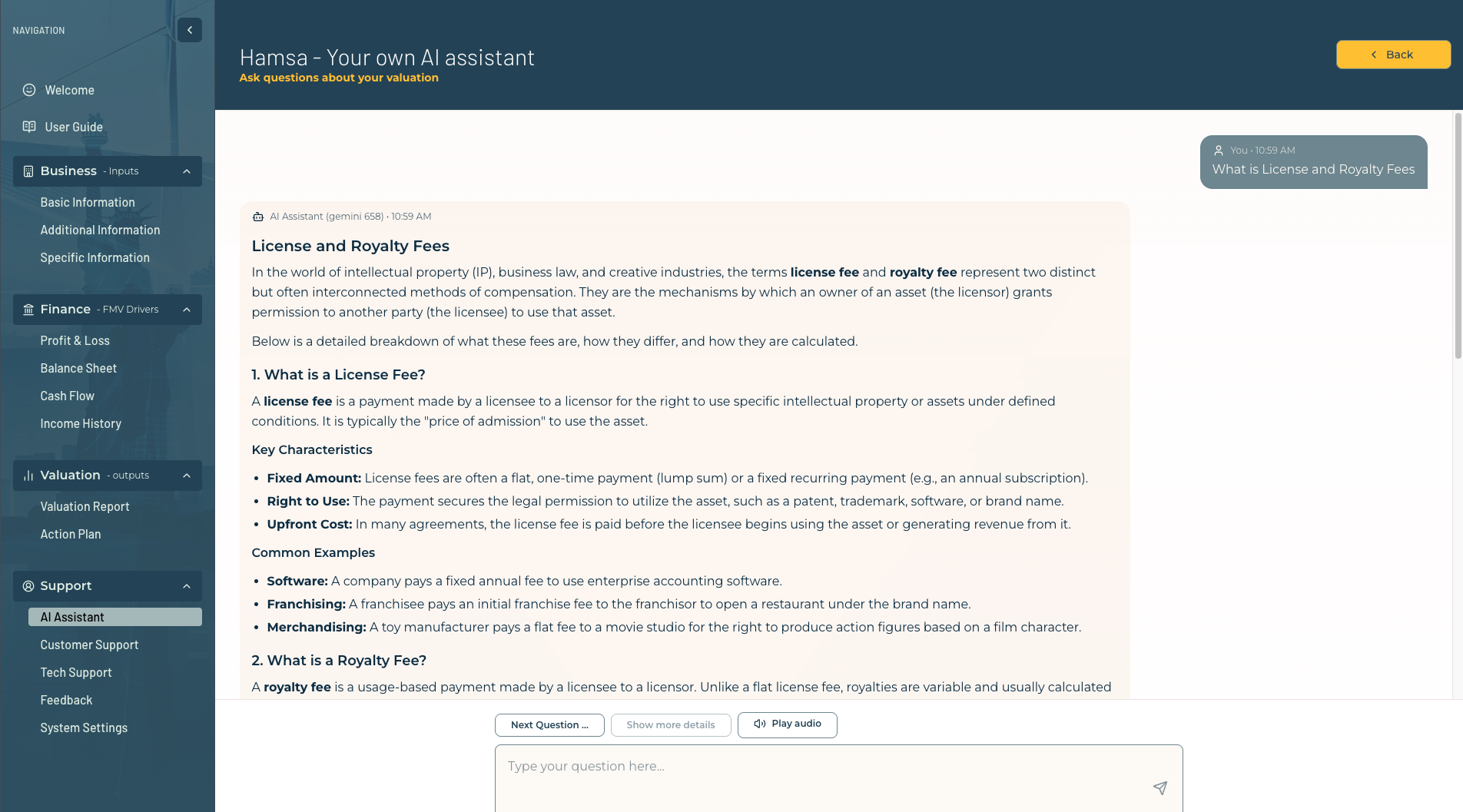
Step 1: Open the assistant
Use the top nav or contextual actions near the metric you’re editing.
Step 2: Ask for “explain” or “draft”
Examples: explain a formula, summarize trends, or draft an investor narrative paragraph.
Step 3: Copy into the report
Use the output as a starting point—then tailor the language to your audience.
Help
Quick actions
Use these links when you’re stuck mid-workflow.
Want a walkthrough with our team?
We can screen-share, review your data, and help you prep valuation narratives for investors or advisors.